Configura el ajuste automático para los créditos de Notion
El ajuste automático compra más créditos automáticamente cuando a tu espacio de trabajo le quedan pocos, para que tus funciones de IA y agentes sigan funcionando sin interrupciones.
Ir a la sección de preguntas frecuentesEl ajuste automático es un ajuste opcional para los espacios de trabajo que utilizan créditos de Notion. Cuando el uso de créditos se acerca a tu límite, Notion compra automáticamente la cantidad de créditos que hayas elegido y la añade a tu saldo al instante. Esto evita que los agentes, las funciones de IA y otros usos basados en créditos se detengan durante un periodo de facturación.
Algunas cosas que debes saber:
El ajuste automático está desactivado por defecto. Puedes elegir activarlo.
Tú decides cuándo se activa y cuánto comprar.
Se te notificará cada vez que se produzca un ajuste.
Los ajustes de tu periodo actual se trasladan a tu siguiente periodo de facturación.
Puedes editarlo o desactivarlo en cualquier momento.
Cuando se ejecuta el ajuste automático, se añaden créditos a tu cuenta inmediatamente y tu cantidad mensual de créditos aumenta de cara al futuro. Se trata de un cambio de plan permanente, no de una compra única. Tu espacio de trabajo se renueva con la cantidad actualizada al inicio de tu próximo periodo de facturación. Cada vez que se ejecuta el ajuste automático, tu cantidad mensual vuelve a aumentar, acumulándose sobre el ajuste anterior, hasta alcanzar tu límite de gasto.
Solo los propietarios y administradores del espacio de trabajo con acceso a la pestaña Facturación pueden activar o gestionar el ajuste automático. Los miembros del espacio de trabajo no tienen acceso a la facturación y no verán estos ajustes.
La ubicación del ajuste automático depende de cómo se abona el plan de tu espacio de trabajo.
Si tu espacio de trabajo paga mensualmente:
Ve a
Configuración→Facturación.Busca la tarjeta de ajuste automático.
Activa el ajuste automático.
Elige tus ajustes (consulta más abajo).
Selecciona
Activar ajuste automáticopara confirmar.
Si tu espacio de trabajo paga anualmente:
Ve a
Ajustes→Facturacióny, a continuación, seleccionaGestionar créditos.También puedes seleccionar
Añadir créditosdesde tu panel de créditos.
En la ventana que se abre, activa
ajuste automático.Elige cuántos créditos añadir cada vez (
Importe de recarga) y el máximo de créditos que el ajuste automático puede añadir (Importe máximo).Selecciona
Guardar cambiospara confirmar.
También puedes activarlo desde la notificación de «límite próximo» que aparece en Notion cuando te acercas a tu límite de crédito, o justo después de realizar una compra manual de créditos.
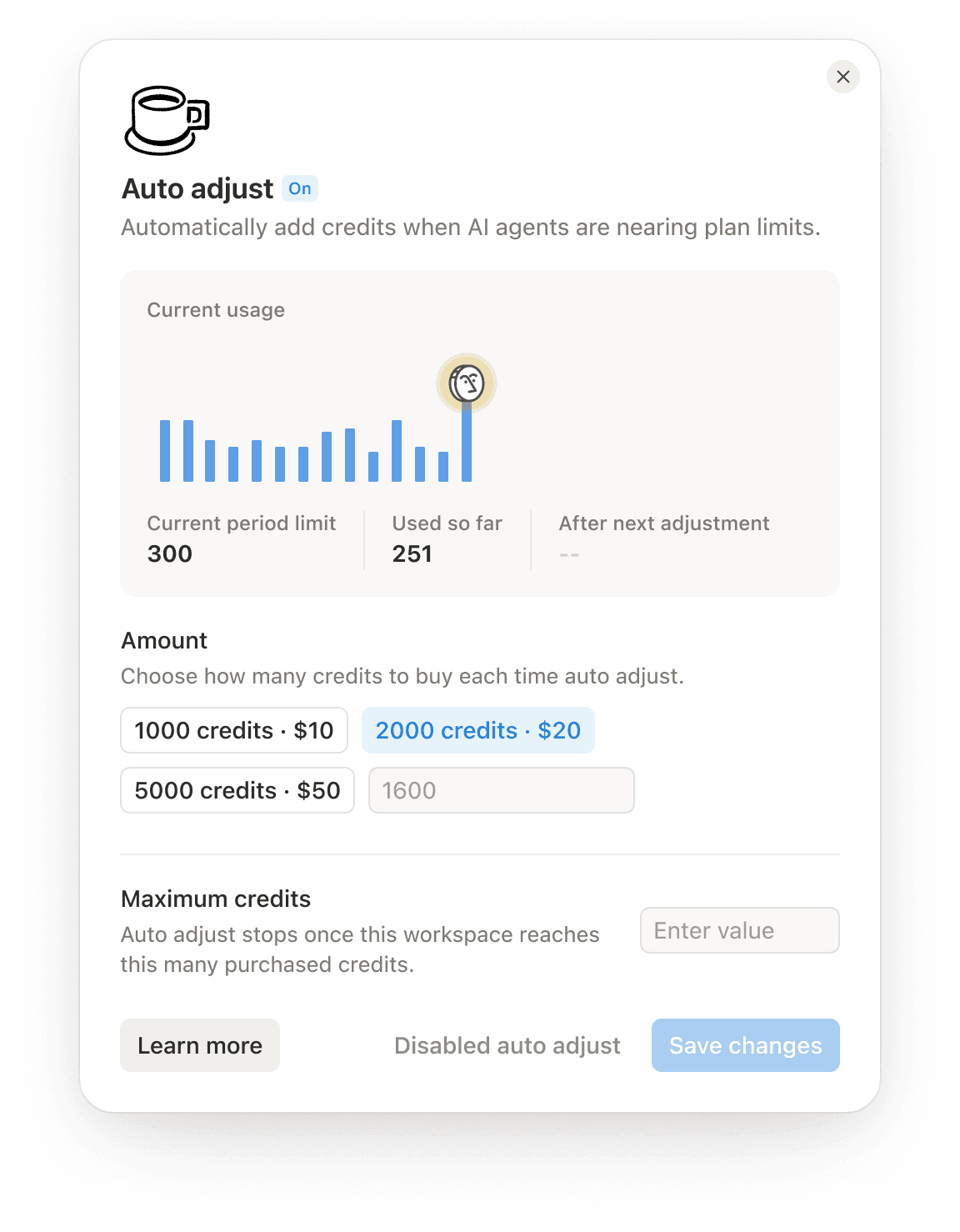
Cuando actives el ajuste automático, establecerás:
Importe: Cuántos créditos comprar cada vez. Elige una cantidad preestablecida (por ejemplo, $10, $20 o $50) o introduce una cantidad personalizada.
Límite de gasto (recomendado): La cantidad máxima que Notion gastará en ajustes durante un periodo de facturación (por ejemplo, $150). Esto evita cargos inesperados.
Si tu espacio de trabajo paga anualmente: Establecerás estos valores como
Importe de recargayImporte máximoen la ventana de pago de créditos, medidos en créditos.
A continuación, te explicamos qué pasará:
El uso de créditos alcanza el 80% de tu límite.
Notion realiza el cargo en el método de pago de tu cuenta por la cantidad que hayas establecido.
Si el cargo se procesa correctamente, los créditos se añaden a tu saldo al instante.
Recibirás una notificación en la app confirmando el ajuste. Por ejemplo: «Ajuste automático realizado: +$50 en créditos».
Si un ajuste falla (por ejemplo, hay un problema con tu pago), Notion no añadirá créditos. Recibirás una notificación pidiéndote que actualices tu método de pago.
Cuando alcances tu límite de gasto, recibirás una notificación avisándote. Notion no volverá a realizar ajustes hasta que comience tu siguiente periodo de facturación.
Cuando el ajuste automático está activado, no recibirás la alerta habitual de "límite próximo" al 80%. En su lugar, recibirás una confirmación cada vez que se realice un ajuste.
Seguirás recibiendo una notificación si alcanzas el 100% de tu límite. Por ejemplo, si has alcanzado tu límite de gasto o un problema de pago ha impedido un ajuste.
Puedes cambiar tus ajustes en cualquier momento desde la pestaña Facturación:
Desactivarlo: Surte efecto de inmediato. No se activarán nuevos ajustes. Conservarás los créditos ya añadidos.
Reducir la cantidad: Surte efecto de inmediato.
Aumentar la cantidad: Requiere una nueva confirmación.
Cambiar el umbral de activación: Surte efecto de inmediato.
Si tu espacio de trabajo paga anualmente: Selecciona
Gestionar créditosen la pestaña Facturación para abrir tus ajustes del ajuste automático.
Comprar menos créditos para el próximo periodo de facturación no desactiva el ajuste automático. Si ya no lo quieres, tendrás que desactivarlo manualmente.
Si pasas al plan inferior, aún puedes editar el ajuste automático (desactivarlo o ajustar la cantidad) y continuará durante el periodo de facturación actual.
Preguntas frecuentes
¿Qué ocurre si mi pago no se puede procesar correctamente?
¿Qué ocurre si mi pago no se puede procesar correctamente?
Notion no añadirá créditos. Recibirás una notificación pidiéndote que actualices tu método de pago. Una vez que se actualice tu método de pago, el ajuste automático volverá a funcionar.
¿Pueden los miembros del espacio de trabajo utilizar esto?
¿Pueden los miembros del espacio de trabajo utilizar esto?
No. El ajuste automático se gestiona en la pestaña Facturación, que solo está disponible para los propietarios y administradores del espacio de trabajo.
¿Cómo desactivar el ajuste automático?
¿Cómo desactivar el ajuste automático?
Ve a la pestaña Facturación y desactiva ajuste automático. Surte efecto de inmediato y conservarás los créditos ya añadidos.
Si tu espacio de trabajo paga anualmente, selecciona Gestionar créditos en la pestaña Facturación y, a continuación, desactiva ajuste automático.